

Exercise plans
Add a patient, build exercises and plans, then assign.
From patient to exercise plan
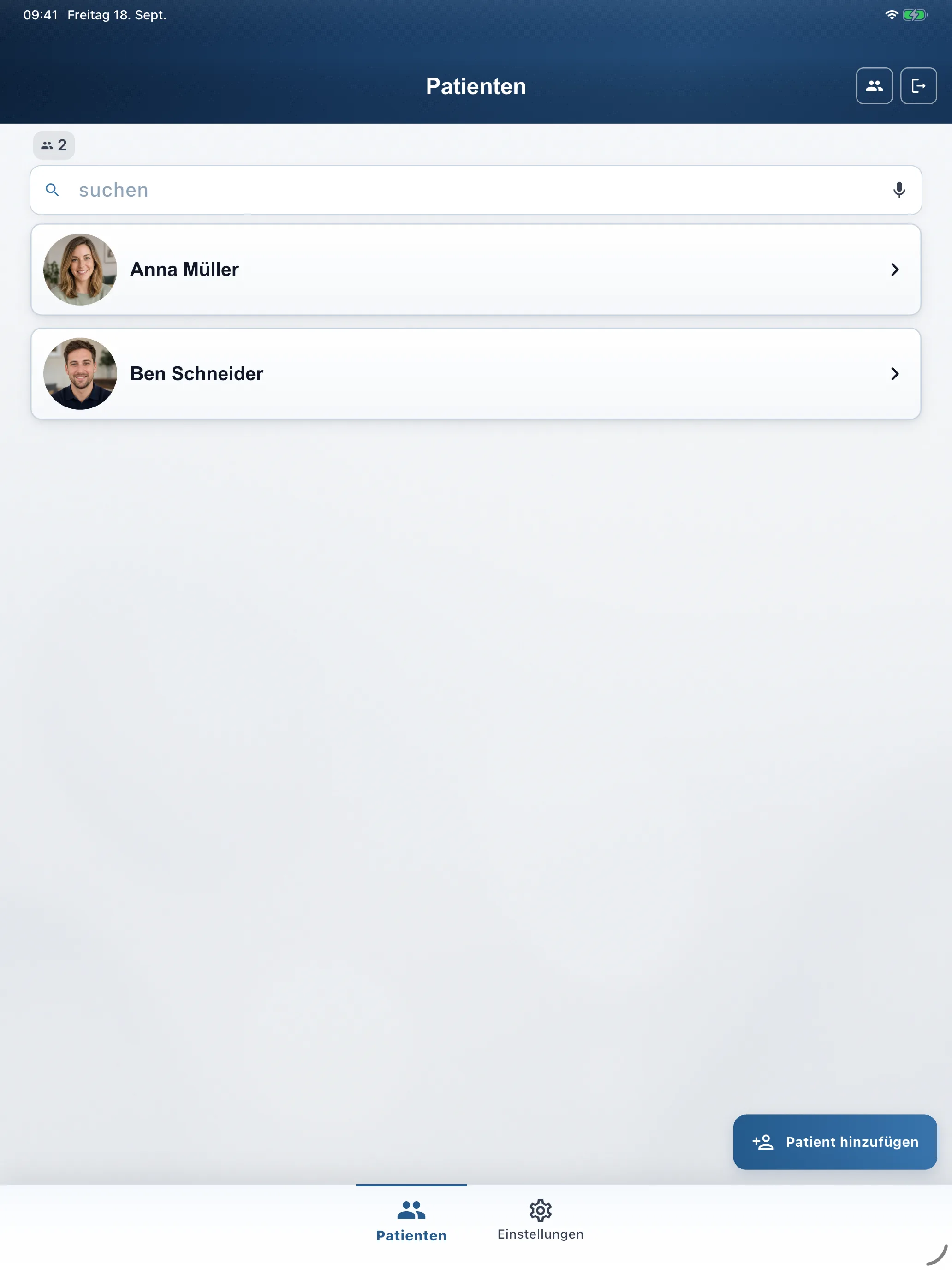
Add a patient
- Open Patients in the bottom bar (beside Settings).
- Tap Add patient (bottom right).
- Save first name, last name, and optional Email (for sign-in). With an email, RehabPilot sends the patient-app invite when you create the record.
Create and dose exercises
Open the patient record → bottom Exercises. Use + New exercise for name, description, and media. Set dosage here: Sets and Repetitions (e.g. 3 × 12), then Save.
Add your own photos or videos with Add media — the exercise joins your library and can go into plans.
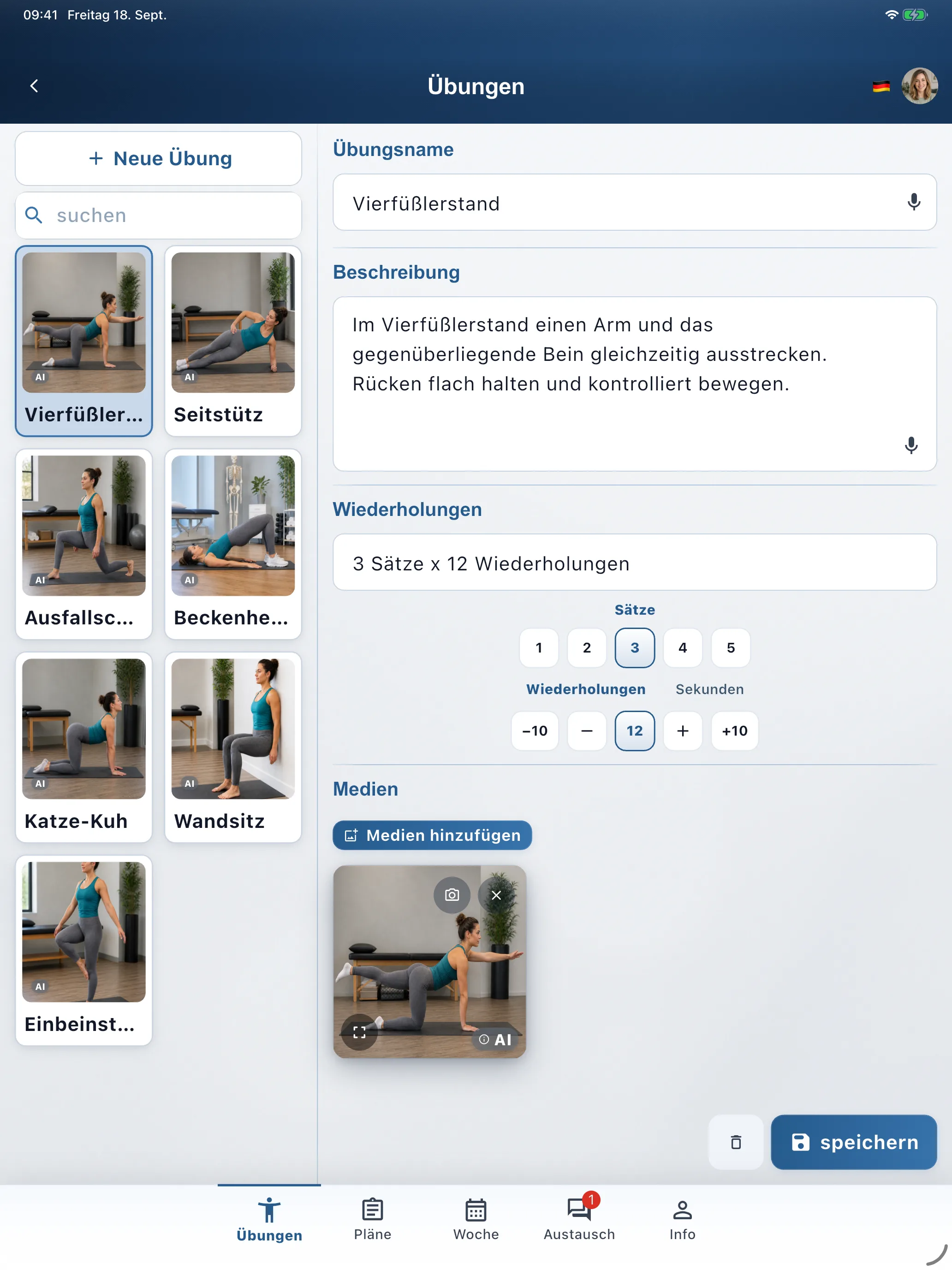
Fields in the exercise editor
Typical fields — patients see the same dosage in their app.
| App field | Example |
|---|---|
| Sets | 3 |
| Repetitions | 12 |
| Description | Short cues for the patient |
| Media | Photo or video of the exercise |
Build a plan
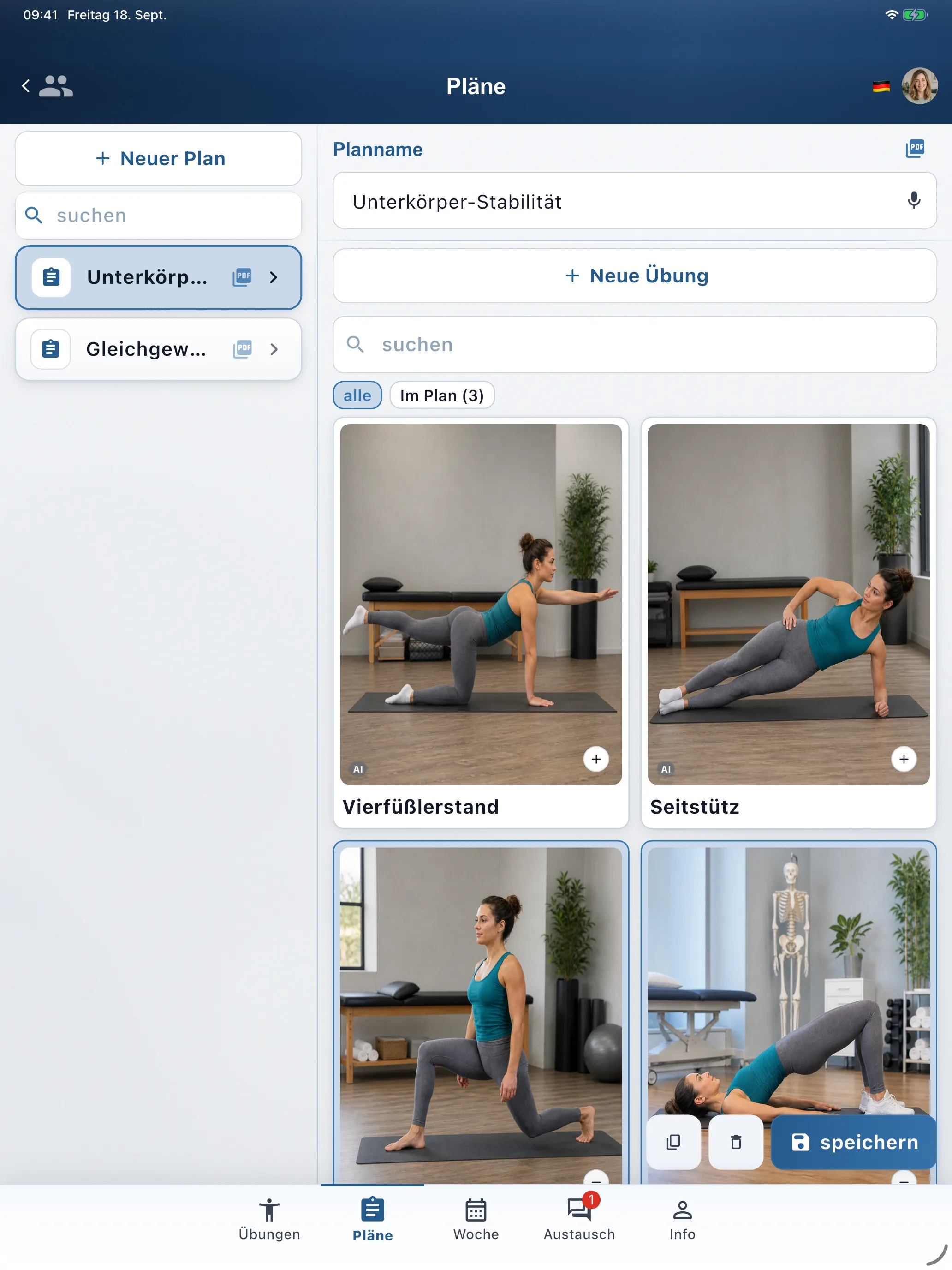
Bottom bar Plans → + New plan. Add exercises via search or tiles (filters all / In plan), then Save. Duplicate with the copy icon for similar programmes.
Next: on Clinic and Enterprise, lay out the week under Week — see Week plan & app.
Sharing on Clinic and Enterprise
On Clinic and Enterprise, exercises and plans are shared practice-wide. Solo keeps the library on that seat. Cover and consistent protocols need Clinic or Enterprise.
Exercise plans FAQ
Quick answers while you build programs from your video library.
Can I record my own exercise videos?
Yes. Film with your phone — including the patient doing the movement — and attach video, photos, and cues to each exercise.
How do I duplicate a plan for a similar patient?
Open an existing plan, duplicate it, and adjust reps, holds, or exercises instead of starting from scratch.
Is there a limit on patients or exercises?
No. Solo and Clinic include unlimited patients and exercises on your practitioner seats.
How do I assign a plan to a patient?
Open the patient record → Plans to build or pick a plan. On Clinic and Enterprise, drag plans onto weekdays under Week and set the schedule Active. After invite (email on create), the patient sees the active week in the app.